
PowerShell ISE Dark Theme, Half Finished, Half Broken, Very Microsoft

ISE Dark Theme, Scuppered by Microsoft
PowerShell ISE has a dark theme, let's face it, it's sub-optimal, half-arsed and clearly created by Microsoft.
Before anyone reaches for the pitchfork, yes, Visual Studio Code is the better editor. It has extensions, Git integration, better formatting, better search, better debugging, better everything really. However, PowerShell ISE wins in one very specific place, real Windows administration. It's installed by default on every Windows client and Server. There is absolutely no way on this round earth that VS Code will be installed on my Servers and Domain Controllers.
I prefer a dark theme when coding or scripting, there's less glare and eye strain... and here Microsoft strikes again.
Change the background to the Dark Theme and the editor looks better for about three seconds, right up until normal text renders a nice shade of black on a dark blue background, XML turns into a red and blue crime scene, and half your unattended install file becomes harder to read than Microsoft licensing.

ISE does not treat all text the same. PowerShell code uses one set of token colours. Plain text uses another setting. XML has its own separate colour dictionary. That means setting a dark background is not enough. You also need to fix script tokens, plain editor text, console text, warning text, error text, and XML token colours.
a text file
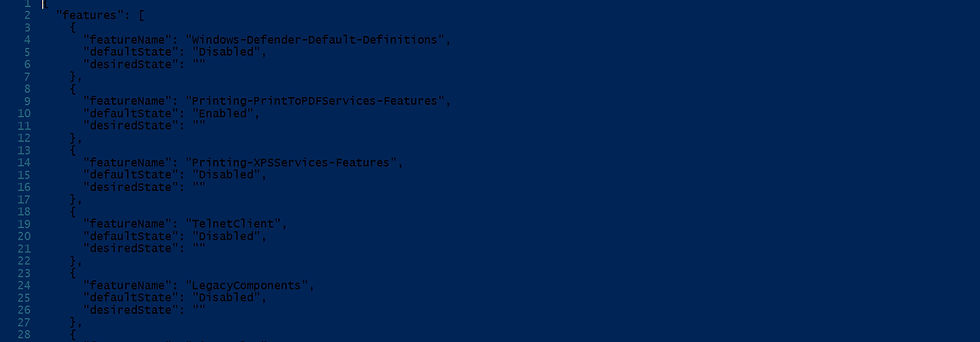
an xml file

Does no one at Microsoft test anything.........
So I Fixed it myself with a Tenaka ISE Theme
The Tenaka theme fixes the dark mode correctly.. I hope.
It sets a dark blue editor background, off-white main text, bronze commands, yellow parameters, green variables, muted strings, blue type/member highlighting, and readable warning and error colours.

The output window is dark blue with off-white text, errors are still red.

It also fixes XML separately, which matters if you work with unattended install files, deployment XML, or configuration files. XML tags, attributes, quoted strings, comments, and plain command text inside XML are all given their own readable colours.

How to Configure ISE Tenaka Theme
Clearly dazzled by this frankly magnificent colour selection, you will obviously want to know how to apply the Tenaka Theme to PowerShell ISE.
Default Profile
This is easy, unless Constrained Language Mode is your thing, then skip this and go to importing a theme.
Copy the script to the path below, inserting your username for <YourUserName>
Expand Script
$DarkBlue   = '#FF0B1F2A' # very dark blue
$NearWhite  = '#FFEAF4F8' # near white
$Bronze     = '#FFD19047' # bronze/gold
$Yellow     = '#FFFFD166' # warm yellow
$MutedText  = '#FFB7CBD6' # muted grey/blue
$BlueAccent = '#FF4FC3F7' # light blue
$Green      = '#FF7CFC98' # green
$Copper     = '#FFB56A2F' # darker bronze/copper
$Red        = '#FFFF6B6B' # red

# WPF colour objects, required for XML token colours
$DarkBlueColor   = [System.Windows.Media.ColorConverter]::ConvertFromString($DarkBlue)
$NearWhiteColor  = [System.Windows.Media.ColorConverter]::ConvertFromString($NearWhite)
$BronzeColor     = [System.Windows.Media.ColorConverter]::ConvertFromString($Bronze)
$YellowColor     = [System.Windows.Media.ColorConverter]::ConvertFromString($Yellow)
$MutedTextColor  = [System.Windows.Media.ColorConverter]::ConvertFromString($MutedText)
$BlueAccentColor = [System.Windows.Media.ColorConverter]::ConvertFromString($BlueAccent)
$GreenColor      = [System.Windows.Media.ColorConverter]::ConvertFromString($Green)

# Main editor background and plain text
$psISE.Options.ScriptPaneBackgroundColor = $DarkBlue
$psISE.Options.ScriptPaneForegroundColor = $NearWhite

# Console / output pane
$psISE.Options.ConsolePaneBackgroundColor     = $DarkBlue
$psISE.Options.ConsolePaneTextBackgroundColor = $DarkBlue
$psISE.Options.ConsolePaneForegroundColor     = $MutedText

# Normal / unknown text
$psISE.Options.TokenColors.Item('Unknown') = $NearWhite

# Commands and functions
$psISE.Options.TokenColors.Item('Command')         = $Bronze
$psISE.Options.TokenColors.Item('CommandArgument') = $NearWhite

# Parameters
$psISE.Options.TokenColors.Item('CommandParameter') = $Yellow

# PowerShell keywords
$psISE.Options.TokenColors.Item('Keyword') = $Bronze

# Variables
$psISE.Options.TokenColors.Item('Variable') = $Green

# Strings
$psISE.Options.TokenColors.Item('String') = $MutedText

# Numbers
$psISE.Options.TokenColors.Item('Number') = $Yellow

# Operators
$psISE.Options.TokenColors.Item('Operator') = $NearWhite

# Brackets, braces, parentheses, separators
$psISE.Options.TokenColors.Item('GroupStart')         = $NearWhite
$psISE.Options.TokenColors.Item('GroupEnd')           = $NearWhite
$psISE.Options.TokenColors.Item('StatementSeparator') = $NearWhite
$psISE.Options.TokenColors.Item('LineContinuation')   = $NearWhite

# Types, for example [string], [int], [System.IO.File]
$psISE.Options.TokenColors.Item('Type') = $BlueAccent

# Object members, for example .Name, .FullName
$psISE.Options.TokenColors.Item('Member') = $BlueAccent

# Comments
$psISE.Options.TokenColors.Item('Comment') = $Copper

# Errors
$psISE.Options.ErrorForegroundColor = $Red
$psISE.Options.ErrorBackgroundColor = $DarkBlue

# Warnings
$psISE.Options.WarningForegroundColor = $Yellow
$psISE.Options.WarningBackgroundColor = $DarkBlue

# XML syntax highlighting
$psISE.Options.XmlTokenColors.Item('Text')             = $NearWhiteColor
$psISE.Options.XmlTokenColors.Item('ElementName')      = $BronzeColor
$psISE.Options.XmlTokenColors.Item('Attribute')        = $YellowColor
$psISE.Options.XmlTokenColors.Item('QuotedString')     = $MutedTextColor
$psISE.Options.XmlTokenColors.Item('Tag')              = $BlueAccentColor
$psISE.Options.XmlTokenColors.Item('Quote')            = $MutedTextColor
$psISE.Options.XmlTokenColors.Item('Comment')          = $GreenColor
$psISE.Options.XmlTokenColors.Item('CommentDelimiter') = $GreenColor
$psISE.Options.XmlTokenColors.Item('CharacterData')    = $NearWhiteColor
$psISE.Options.XmlTokenColors.Item('MarkupExtension')  = $BlueAccentColor
C:\Users\<YourUserName>\Documents\WindowsPowerShell\Microsoft.PowerShellISE_profile.ps1
Restart ISE

Creating a Theme
Alternatively, paste the script into PowerShell ISE and run it with F8. This applies the Tenaka Theme for the current session.
To save it as a reusable theme, open:
Tools > Options > Manage Themes > Export
When exporting, keep the original file extension, " .StorableColorTheme.ps1xml ". If the extension is changed, ISE won't recognise the file and the theme will not import later.
Here's the link to Github
Enjoy. And obviously, if you think you have a better colour scheme, you are free to be wrong, but do drop a comment in the box below. The Tenaka Theme is, quite clearly, the best ISE theme everrrrrrrr.
Links:


Comments