
Hyper-V Killing WiFi Performance: When Your Virtual Switch Kills Your Upload Speed
- Tenaka

- Apr 3
- 3 min read
There is a particularly annoying problem that can appear when running Hyper-V on laptops that depend on WiFi instead of proper Ethernet. If you use External and Internal switches like I do for moving VMs between Hyper-V servers and dev laptops, you may run into it sooner rather than later.
Everything looks fine, the adapter reports healthy, signal is strong, drivers are current, yet performance completely implodes, turning a high speed WiFi into dial-up.
Well, this teaches me for using Hyper-V.
The root cause is the Hyper-V External Virtual Switch binding directly to the WiFi adapter. When this happens, Windows effectively inserts a virtual network filter between the physical adapter and the operating system.
In theory this allows VMs to share the adapter cleanly. In practice, especially with Intel WiFi chipsets, it can absolutely destroy throughput, particularly upload performance.
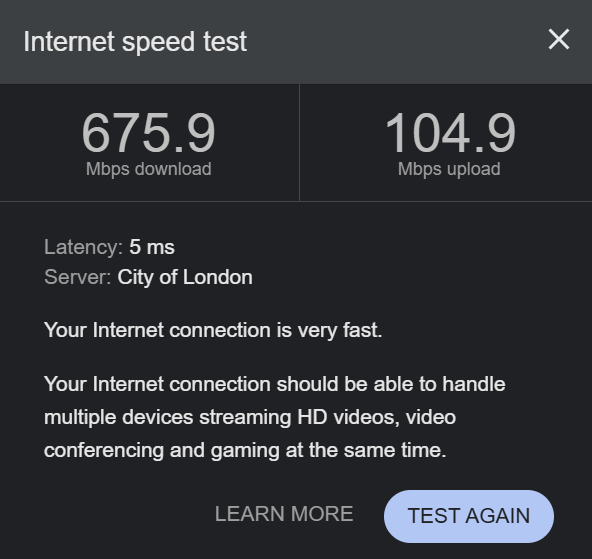
Normal performance without Hyper-V external binding
When the Hyper-V switch is not attached to the WiFi adapter, performance is exactly what you would expect from a modern WiFi 6E connection:
Download: 675 Mbps
Upload: 104 Mbps
Latency: 5 ms
This shows the wireless adapter working normally with no Hyper-V networking overhead.
Hyper-V switch configured as Internal
Here the Hyper-V switch is configured as:
Internal network
This means:
VMs can talk to the host
No physical adapter binding exists
WiFi operates normally
Hyper-V networking stays isolated
This is effectively the "safe" configuration for laptop labs.

Performance collapse when External switch is enabled
When the Hyper-V switch is changed to:
External network → Intel Wi-Fi 6E AX211
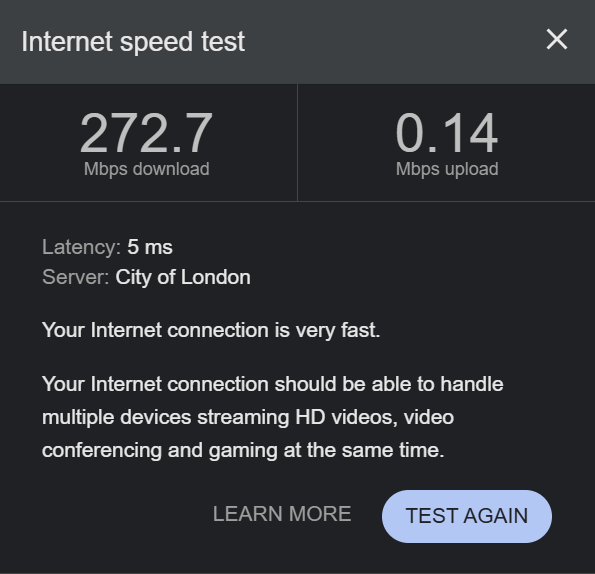
Performance immediately drops:
Download: 272 Mbps
Upload: 0.14 Mbps
Latency: 5 ms
Yes, that upload number is correct.
This is Hyper-V inserting the virtual switch filter driver into the WiFi stack and something in that path going very wrong.
When uploads drop this dramatically while latency stays stable, you are usually looking at driver interaction problems rather than RF conditions.
The actual problematic configuration
External virtual switch bound to:
Intel(R) Wi-Fi 6E AX211 160MHz
Allow management operating system to share this network adapter:
Hyper-V takes ownership of the physical adapter
Creates a virtual NIC for Windows
Routes host traffic through the Hyper-V switch
Inserts filtering extensions into the datapath
Effectively your host becomes just another VM from a networking perspective.
That extra abstraction layer is where performance dies.

What Hyper-V is actually doing to your WiFi
When you create an External switch, Hyper-V installs:
Hyper-V Extensible Virtual SwitchVirtual Switch Filtering PlatformNDIS filter drivers
Your traffic path becomes:
WiFi Adapter→ Hyper-V Virtual Switch→ Virtual NIC→ Windows TCP/IP stack
Instead of:
WiFi Adapter→ Windows TCP/IP stack
That extra path introduces:
Packet inspection overhead
Driver compatibility issues
Queue handling differences
Offload conflicts
Buffering changes
Intel wireless drivers are particularly sensitive to this.
Why upload gets hit hardest
Uploads often break first because:
WiFi contention handling is asymmetric
Driver transmit queues get affected
Large Send Offload interactions change behaviour
Virtual switch buffering delays ACK flow
This results in TCP throttling itself.
The connection looks fine, but TCP thinks congestion exists.
So it slows itself down.
Practical fixes that actually work
Avoid External switches on WiFi (best fix)
The most reliable solution is simply:
Do not bind Hyper-V External switches to WiFi adapters.
Instead use:
Default Switch (NAT) or Internal Switch + NAT
These approaches avoid inserting the Hyper-V switching layer into the physical wireless path.
Disable Large Send Offload (LSO)
If you must use an External switch, disabling LSO can help stability.
Location:
Device Manager→ Network Adapter→ Properties→ Advanced
Disable:
Large Send Offload v2 (IPv4)
Large Send Offload v2 (IPv6)
Why this helps:
LSO allows Windows to hand large packets to the NIC for segmentation. When Hyper-V filtering is involved, segmentation timing can become inefficient or buggy, particularly on wireless adapters.
Disable Receive Segment Coalescing (RSC)
RSC can also cause problems in virtual networking paths.
Disable via PowerShell:
Disable-NetAdapterRsc -Name "Wi-Fi"Why this helps:
RSC combines packets to reduce CPU usage. Hyper-V filtering sometimes interferes with this process, causing throughput inconsistencies rather than improvements.
VMQ is usually irrelevant for WiFi
VMQ tuning is often suggested but usually does nothing for wireless adapters because VMQ is primarily designed for high speed Ethernet NICs.
If tested, disabling can be done with:
Set-VMNetworkAdapter -ManagementOS -Name "vEthernet (External)" -VmqWeight 0But this should be considered a secondary tuning step, not a primary fix.


Comments