
Zero Trust for the Home Lab - IPSec (Part 4)

Updated: Aug 29
The Road to the World's Most Secure Home Lab....
So far in the pursuit of the World's most secure home lab, the following have been implemented:
Part 1 - Zero Trust Introduction
Part 3 - pfSense and 802.1x
What's Covered in this Blog
This post covers implementing IPSec using certificates for authentication and data encryption across my Windows Domain. This is not for the faint of heart.
What Is Zero Trust - Recap
Zero Trust is a security framework that assumes no user, device, or network segment is inherently trustworthy, regardless of where it sits in the network. The core principles include:
Verify explicitly – Always authenticate and authorize access.
Use least privilege access – Limit access to only what's needed.
Assume breach – Design as if attackers are already in the network.
How IPSec Addresses Zero Trust Security
Zero Trust assumes the network is hostile, even internal traffic can't be trusted without verification. Every connection must be authenticated, authorized, and encrypted. IPSec (Internet Protocol Security) is a key enabler:
IPSec Overview
IPSec is a suite of protocols designed to secure IP communications by authenticating and encrypting each IP packet. It lends itself to Zero Trust by enforcing confidentiality, data integrity, origin authentication, and replay protection.
When deployed in a Windows environment, IPSec leverages Active Directory and the Microsoft Public Key Infrastructure (PKI), also known a Certificate Authority (CA).
End-to-End Encryption:
All internal traffic should be encrypted. IPSec encrypts IP packets at the network layer, ensuring confidentiality and integrity from endpoint to endpoint, protecting data regardless of the underlying application or network. This can be challenging when accessing services that aren't inherently secure or encrypted, such as the Internet.
Mutual Authentication:
With a CA managing digital certificates, IPSec can perform strong mutual authentication between devices.
Identity Assurance:
The use of a CA provides control over credentials that defines certificate lifespans, whether to issue or revoke them as needed.
IPSec Technical Components
Security Associations (SA):
An IPSec Security Association (SA) are 2 unidirectional agreements between two endpoints defining traffic security, specifying the encryption, authentication methods, keys, and lifetime for that session. These are negotiated automatically via IKE (Internet Key Exchange), ensuring both sides agree on how to protect the data in transit.
AH vs. ESP
IPSec offers two main ways to protect packets:
Authentication Header (AH) – IP Protocol 51
Authenticates the entire IP packet (including headers) to ensure data integrity and source authenticity.
AH does not encrypt the payload, your data remains visible.
Rarely used in practice; largely obsolete in modern IPSec deployments.
Encapsulating Security Payload (ESP) – IP Protocol 50
Encrypts and optionally authenticates the payload, provides:
Confidentiality (via encryption)
Data integrity and authentication (via HMAC)
Modes:
Transport Mode: Encrypts only the payload, IP header is exposed.
Tunnel Mode: Encrypts the entire original IP packet and adds a new IP header.
Obvious Choice:
ESP is the standard choice for secure, encrypted communications in Windows IPSec.
IKEv2
Microsoft strongly recommends IKEv2 as the default key management protocol:
Supports certificate and EAP authentication methods.
Built-in NAT Traversal with UDP port 4500 encapsulation.
Robust against network disruptions and supports mobility.
Provides streamlined, secure negotiation of SAs.
Aligns well with 802.1X for device/network authentication.
Windows IPSec implementations starting with Windows 7 and Server 2008 R2 default to IKEv2 for VPNs and IPSec tunnels. Unfortunately, this feature isn't supported through GPO, so we will have to settle for IKEv1. The impact of GPO's not natively supporting IKEv2 results in RSA certificates and not ECC IPSec Certificate support. You'll also need to remember it's IKEv1 when configuring swanctl.conf for Linux.
Quick and Main Modes
Phase 1: IKE SA Establishment (Main Mode or Aggressive Mode)
This phase establishes the ISAKMP/IKE Security Association, which provides a secure, authenticated channel for subsequent negotiation. It includes:
Peer authentication using certificates, pre-shared keys, or Kerberos
Diffie-Hellman key exchange to derive shared secrets
Agreement on encryption, integrity, and hashing algorithms
Traffic in this phase uses UDP port 500.
Phase 2: IPSec SA Negotiation (Quick Mode)
Phase 2 leverages the secure channel from Phase 1 to:
Establish one or more IPSec Security Associations (SAs)
Define the protected traffic flows using traffic selectors (source/destination IPs, ports, protocols)
Generate fresh keying material for encryption and integrity
Quick Mode messages are protected by the IKE SA established in Phase 1. The outcome is the creation of ESP SAs for actual packet level protection.
Ports & Protocols:
Crucial! Required Windows firewall rules, both Inbound and Outbound:
UDP Port 500: IKE (initial negotiations)
UDP Port 4500: IKE NAT Traversal (when devices are behind NAT)
IP Protocol 50: ESP (for the encrypted data)
IP Protocol 51: AH (don't use)
Basic CA and GPO Configuration:
Ensure every Windows Domain client trusts the Windows Root CA, and deploy it using GPO if necessary.
Enable auto-enrollment of certificates in Group Policy, certificate templates with the Autoenroll permission will do just that, and enroll automatically.
Crucial! Certificates should not serve multiple purposes. The IPSec certificate must exclude other Application policies to avoid conflicts and processing errors.
Additional Logging
I've enabled the three IPSec auditing policies at the root of the Domain to assist with initial testing and troubleshooting. These settings generate a high volume of event logs, but once IPSec is stable and set to 'Required', logging can be reduced to capture only failures.

Client Certificates
No TPM.....
Not all of my Windows clients and servers are blessed with a TPM, case in point, the Intel Skull Canyon and the Gen 6 NUC - Hyper-V host, they still cling to life with retirement being long overdue. Without the TPM there's no support for Microsoft Platform Crypto Provider.
The fallback option when a TPM isn't available is to use the Microsoft Software Key Storage Provider, targeting the correct provider is managed through Active Directory groups controlling certificate enrollment.
Create the following AD Groups. If you have followed the 802.1x blog, the client groups will have already been created:
For Computer objects that do not support TPM
RG_CA_WksAuthCert_Deny_TPM_Supt
RG_CA_MemberServer_Deny_TPM_Supt
For Computer objects that do support TPM
RG_CA_MemberServer_Allow_TPM_Supt
RG_CA_WksAuthCert_Allow_TPM_Supt
Workstation Authentication Client - TPM Supported
Workstation Authentication Template:
Right-click Certificate Templates and select Manage.
Right-click the Workstation Authentication template and select Duplicate Template.
General Tab:
Template display name: Toyo Workstation IPSec
Validity period: 1 years
Renewal period: 6 weeks
Check 'Publish certificate in Active Directory.'

Compatibility Tab:
Set compatibility levels to Windows Server 2016 and Windows 10

Cryptography Tab:
Provider Category: Key Storage Provider
Algorithm Name: RSA
RSA is supported for key generation and storage in the TPM.
ECC (Elliptic Curve Cryptography) isn't generally supported for TPM storage of certificates.
Minimum key size: 2048
Request hash: SHA256
Requests must use one of the following providers:
Microsoft Platform Crypto Provider
Microsoft Platform Crypto Provider is the Key Storage Provider (KSP) that allows certificates and their private keys to be stored in the Trusted Platform Module (TPM).
If no TPM is accessible, the certificate will fail to enroll.

Subject Name Tab:
Under 'Build from this Active Directory Information'
Subject name format: Common Name is selected
Include this information in the alternative sub name: Check DNS

Extensions Tab:
Select Application Policies and click Edit....
Ensure Client Authentication is present.
Add IP Security IKE Intermediate > Click OK.
This isn’t required for 802.1X, but it will be relevant in the next article on IPsec.

Security Tab:
Ensure Domain Computers is removed
Add RG_CA_WksAuthCert_Allow_TPM_Supt and Allow Read, Enroll and AutoEnroll.
Click Apply and OK.

Workstation Authentication Client - TPM Not Supported
Toyo Workstation Authentication Template:
Right-click the Toyo Workstation IPSec template and select Duplicate Template.
General Tab:
Update the name to show that the TPM isn't supported

Cryptography Tab:
Provider Category: Key Storage Provider
Algorithm Name: RSA
Minimum key size: 2048
Request hash: SHA256
Requests can use any provider available on the subject's computer.

Security Tab:
Ensure 'Domain Computers' is removed
Add RG_CA_WksAuthCert_Deny_TPM_Supt and Allow Read, Enroll, and AutoEnroll.
Authenticated User with Read must remain otherwise the CA itself is unable to read the Template.
Click Apply and OK.

Member Server Certificates
Duplicate the 'Computer v2' certificate template
General Tab:
Template display name: Toyo Member Server IPSec.
Validity period: 1 years
Renewal period: 6 weeks
Check 'Publish certificate in Active Directory.'
Compatibility Tab:
Set compatibility levels to Windows Server 2016 and Windows 10
Cryptography Tab:
Provider Category: Key Storage Provider
Algorithm Name: RSA
RSA is supported for key generation and storage in the TPM.
ECC (Elliptic Curve Cryptography) is supported for certificate storage in the TPM, it cannot be used with GPO configured IPSec. GPO IPSec policies rely on IKEv1 only, which limits authentication to RSA. Although PowerShell (Set-NetIPSecRule) can configure the key module to use IKEv2, this capability cannot be deployed or managed via Group Policy.
Minimum key size: 2048
Request hash: SHA256
Requests must use one of the following providers:
Microsoft Platform Crypto Provider
Microsoft Platform Crypto Provider is the Key Storage Provider (KSP) that allows certificates and their private keys to be stored in the Trusted Platform Module (TPM).
If no TPM is accessible, the certificate will fail to enroll.
Subject Name Tab:
Under 'Build from this Active Directory Information'
Subject name format: Common Name is selected
Include this information in the alternative sub name: Check DNS
Extensions Tab:
Select Application Policies and click Edit....
Remove Client Authentication and Server Authentication.
Add IP Security IKE Intermediate > Click OK.
Security Tab:
Ensure Domain Computers and Domain Controllers are removed
Add RG_CA_MemberServer_Allow_TPM_Supt
Allow Read, Enroll, and AutoEnroll.
Click Apply and OK.
Domain Controller
Duplicate the 'Domain Controller Authentication' Template, which should be deployed already.
All of my domain controllers are virtual and equipped with a vTPM, allowing them to use the Microsoft Platform Crypto Provider. If your environment differs, separate the certificate templates as previously outlined for clients and servers.
General Tab:
Template display name: Toyo Domain Controller IPSec.
Validity period: 1 years
Renewal period: 6 week
Do not 'Publish certificate in Active Directory.'
Compatibility Tab:
Set compatibility levels to Windows Server 2016 and Windows 10
Cryptography Tab:
Provider Category: Key Storage Provider
Algorithm Name: RSA
RSA is supported for key generation and storage in the TPM.
ECC (Elliptic Curve Cryptography) is supported for certificate storage in the TPM, it cannot be used with GPO configured IPSec. GPO IPSec policies rely on IKEv1 only, which limits authentication to RSA. Although PowerShell (Set-NetIPSecRule) can configure the key module to use IKEv2, this capability cannot be deployed or managed via Group Policy.
Minimum key size: 2048
Request hash: SHA256
Requests must use one of the following providers:
Microsoft Platform Crypto Provider
Microsoft Platform Crypto Provider is the Key Storage Provider (KSP) that allows certificates and their private keys to be stored in the Trusted Platform Module (TPM).
If no TPM is accessible, the certificate will fail to enroll.
Subject Name Tab:
Under 'Build from this Active Directory Information'
Subject name format: Common Name is selected
Include this information in the alternative sub name: Check DNS
Extensions Tab:
Select Application Policies and click Edit....
Remove Client Authentication, Server Authentication and Smart Card Logon.
Add IP Security IKE Intermediate > Click OK.
Security Tab:
Leave the Default Security settings
Click Apply and OK.
Publish the New Templates:
In the Certification Authority console
Right click Certificate Templates, select New, then Certificate Template to Issue.
Select your newly created Toyo Templates.
Restart the clients to automatically enroll the certificate or gpupdate /force
IPSec Certificates
The end result will be a dedicated set of certificates purpose built for IPSec that caters for devices with and without a TPM.

The Somewhat Scary Stuff Begins Here.....IPSec Request
The "Request IPSec" policy is a relatively safe starting point for introducing IPSec into your environment without disrupting existing communication. Rather than enforcing encryption, it negotiates secure connections when possible and gracefully falls back to plaintext.
Create a new GPO for each tier of service, Domain Controller, Member Servers and Clients, name appropriately to show that these policies are specifically for IPSec. Try and refrain from using the root domain policy or bundling the update into another already established GPO.
Don't create or modify Root level IPSec GPO's, not only is it bad practice, it could to lead to a rather serious outage of the entire Domain.
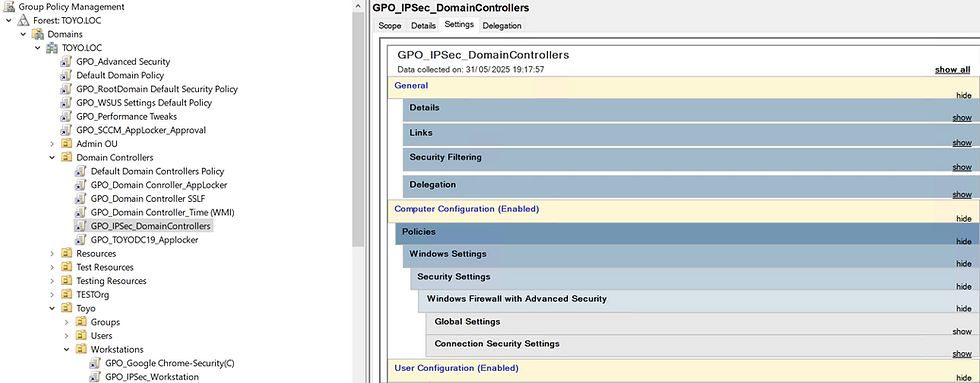
Consistency across all GPOs is critical, any mismatch in settings will lead to IPSec negotiation failures.
Exceptions for Routers and AP's:
The Domain Controller IPSec policy was deployed first, with the following rules configured. In addition to the standard 'Request inbound and outbound' rule, exemptions were added for the router IP to allow Internet access and for the PiHole servers for DNS resolution.
The Build LAN exception for 192.168.60.0/24 (VLAN60) allows communication with clients and servers that have yet to join the domain and, therefore, can't establish an IPSec tunnel due to missing certificates. The exceptions for VLAN60 include DC's and the CA servers.
Some follow-up actions are needed to create the additional VLAN and Firewall in pfSense.
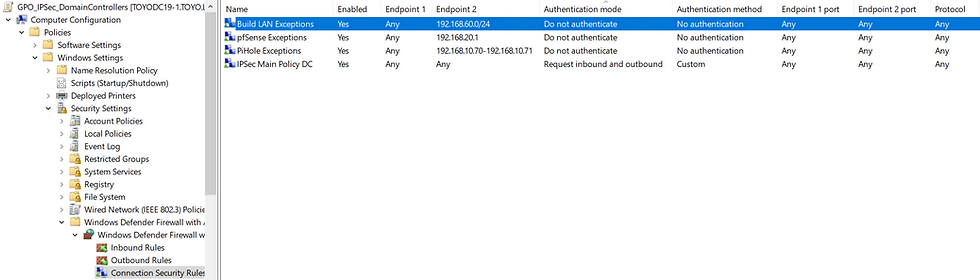
GPO_IPSec_DomainControllers:
Navigate to Computer Configuration > Policies > Windows Settings > Security Settings > Windows Defender Firewall with Advanced Security.
Right click on Connection Security Rules and New Rule...
Rule Type:
Custom

Endpoints:
Any IP Address

Requirements:
Request authentication for inbound and outbound connections.

Authentication Method:
Advanced
Customize.....

Customize Advanced Authentication Methods:
First Authentication
Add
Computer Certificate from this CA
Select the Enterprise Root Certificate

Protocols and Ports:
Any.

Profile:
Check only the Domain profile.
It's unlikely the DC's and Servers will roam, consider selecting all 3 profiles.

Name:
Add a meaningful name.

IPSec Settings Tab:
Right-click on Windows Defender Firewall with Advanced Security
Click on the IPSec Setting Tab
Customize....
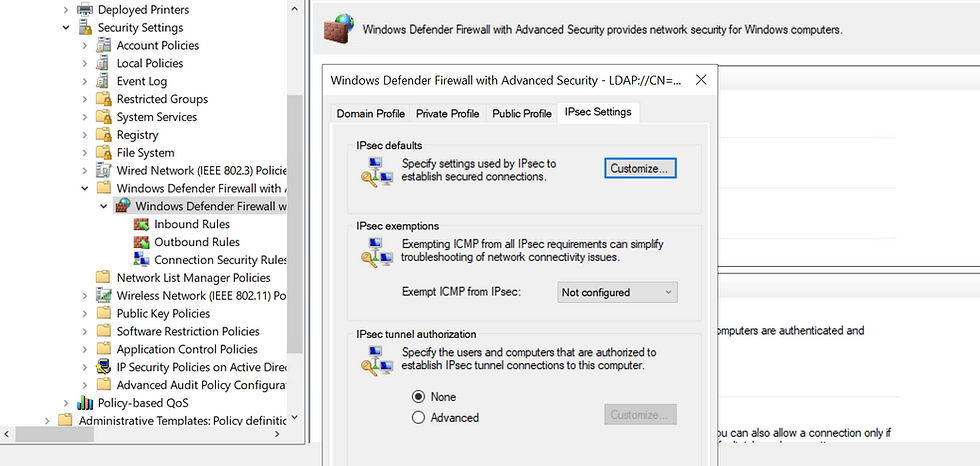
Customize IPSec Defaults:
For Main Mode, Quick Mode and Authentication Method, click on Advanced.
Customize each in turn, following the guide below

Key exchange (Main Mode):
Click Add..

Integrity algorithm:
SHA-256
Encryption algorithm:
AES-CBC 256
Key exchange algorithm:
Elliptic Curve Diffie-Hellman P-256
Key exchange options:
Use Diffie-Hellman for enhanced security.

Data Protection (Quick Mode):
Require encryption for all connection security rules that use these settings:
Enable this option to encrypt the data, without it, only the authentication process is encrypted.
Protocol:
ESP (recommended)
Encryption algorithm:
AES-GCM 128
Integrity algorithm:
AES-GCM 128

Note: AES-GCM-128 and 256 are supported by Rocky Linux, AES-GMC-192 is not supported
Authentication Method:
First Authentication
Add
Computer Certificate from this CA
Select the Enterprise Root Certificate

Copy the First IPSec GPO:
Don't make things difficult by recreating the GPO's for each tier of OU, copy and paste the first IPSec policy in Group Policy Objects:
Navigate to Group Policy Objects
Right click, GPO_IPSec_DomainController and Copy
Paste and rename 'Copy of GPO_IPSec_DomainController' to GPO_IPSec_MemberServers
Repeat, and create GPO_IPSec_Workstations.

Link the GPO's to their corresponding OU.

IPSec Require Mode and the Network Profile Race Condition
Crucial! When IPSec is configured in Require mode within a domain, all inbound traffic must be authenticated, which results in a race condition during system startup.
DC's, Windows clients and Servers rely on the Network Location Awareness (NLA) service to determine which firewall profile (Domain, Private, or Public) to assign based on whether it can reach a domain controller.
However, if IPSec is in Require mode on the DC and the client hasn't yet established an IPSec Security Association (SA), all unauthenticated attempts to reach domain services (like LDAP or Kerberos) are silently dropped.
This creates a loop:
The client can't authenticate because it hasn’t established IPSec yet.
It can’t establish IPSec because the DC won’t respond to unauthenticated traffic.
As a result, the client falls back to the Public profile, blocking IPSec negotiation as it not enabled for IPSec.
To get around this catch 22, the following IPSec Exemption Mode rules are required to allow unencrypted network communication at system startup. While this introduces gaps in the IPSec enforcement policy, the majority of ports remain configured with the 'Require' setting. Critically, the two most commonly targeted services—SMB (445) and RDP (3389) are still enforced, mitigating the highest-risk vectors.
Note - Don't think setting Request for these ports is an option.
DHCP | UDP | 67, 68 | Clients, Server |
DNS | UDP/TCP | 53 | DC, Clients, Server |
SMB\CIFS | TCP | 445 | DC, Clients, Servers |
Kerberos | UDP/TCP | 88, 464 | DC, Clients, Server |
LDAP | TCP | 389, 636 | DC, Clients, Server |
ESP (IPsec payload) | IP Protocol 50 | N/A | DC, Clients, Server |
IKEv1 and IKEv2 | UDP | 500 | DC, Clients, Server |
DC Exemptions
The domain controller exemptions permit Endpoint 1 to initiate connections from any source port to specific service ports (e.g., TCP/UDP 88 for Kerberos), and allow Endpoint 2 to send traffic from any source port to the same service ports on remote systems.

Server and Client Exemptions
Clients and servers initiating connections to a remote DC service port require Endpoint 2 to allow traffic from any source port to a specific destination port.

Note: Both IPSec and exemption rules are initially configured with an open Any/Any endpoint setting. This approach makes life a little easier when investigating connectivity issues. Once the environment is fully configured, tested and stable, a remediation step will be carried out to harden the policies to allow names services and subnets.
Firewalls.... What the.......I did warn you.
You may encounter a situation where enabling IPSec Request rules causes the Windows Firewall to enforce stricter behavior. Even previously reliable and well-established firewall rules may begin to block traffic unexpectedly, such as group policies failing to apply.

Crucial! Firewalls, particularly the Windows Firewall, will be the most significant source of pain during implementation. While pfSense may present occasional challenges, the majority of connectivity and policy enforcement problems were from Windows. Ensure that Firewall logging is enabled and reporting correctly.
Test the Request Policy:
Update the policy on the DC's, Member Servers and Clients with gpupdate /force.
Windows Firewall - wf.msc
To confirm that IPSec is functioning correctly in Request mode, start by opening wf.msc (Windows Defender Firewall with Advanced Security). Under the Monitoring section, navigate to Security Associations > Main Mode and Quick Mode to view active IPSec tunnels.
Clicking on Connection Security Rules shows the accumulation of policies that are actively being applied.

Main Mode

Quick Mode

Eventlogs
Open Event Viewer (eventvwr)
Paste the following event IDs and filter for IPSec events, remove the chaff.
5440, 5441, 5442, 5450, 5451, 5452, 5453, 5454, 5455, 5456, 5457, 5458, 5459

Review the logs

That’s the first step in implementing IPSec using Request mode, which carries minimal risk of service disruption. However, domain joined machines, including domain controllers, will still accept traffic from devices that aren’t using IPSec. This includes any unmanaged or potentially insecure IoT devices. Now it gets serious.....
Now for the Really Scary Stuff .....IPSec Required
Implementing Require IPSec policies enforces strict authentication and encryption, all inbound and outbound traffic will be encrypted, unless there's an exemption rule. Any misconfiguration of policy or certificates, expect a service outage.
Thoroughly test all scenarios in a controlled environment before applying Require mode. You assume full responsibility for any service impact, and proceed at your own risk.
Be prepared for some frustration, check the DC firewall rules, it may not be IPSec, and good luck!!!!
The Plan
Now that I've provided the appropriate warning and my conscience is clear, it's time to implement Require IPSec rules...gradually
Given the above warning, switching from Request to Require without a staged rollout isn’t the smartest move. Request mode provides the necessary failsafe, it plays nicely and maintains connectivity during deployment, something Require mode does not. Even if IPSec tunnels appear to negotiate successfully in testing, enforcing Require can break communication with systems that are slightly off-kilter.
Make sure you have physical access to the system and choose your test targets carefully. There’s a recovery mechanism, hacking the Registry, if things go sideways. Let’s avoid dragging out the crash cart if we can help it.
Make sure every client, server and domain controller is on and their policies are up to date prior to proceeding.
My target is a DC, I've plenty of them, easy to replace, minimal chance of data loss, and it helps being able to unpick the GPO and have it apply locally to that DC. Don't pick a DC with a FSMO role, especially the PDC emulator.
Required GPO:
Connect Group Policy Management to the target DC.
This helps revert the GPO if network connectivity is lost.
Create a new GPO, name it GPO_IPSec_Require.
Remove Authenticated Users from the Security Filtering.
Add the nominated DC, in my case TOYODC19-3
This filters the GPO to the named DC and no others

Connection Security Rules:
Edit the GPO and navigate to the Connection Security Rules
Created a new Connection Security Rule.
Using the previous procedure, match the settings except for the Requirement page.
Select 'Require authentication for inbound and outbound connections'

Post Require Checks:
Run gpupdate on the DC.
If the stars align and so do the certificates, CRL and policy, the more restrictive policy takes preseedence, Required Mode is now in operation.
Congratulations.
Verify access to other domain resources and network shares, testing as many connections as possible.
Open wf.msc, confirm entries in Main and Quick mode

Staged Deployment:
This is a gradual deployment, only fools rush in....and they’re usually the ones pulling an all nigther trying to fix their mess.
Link the 'GPO_IPSec_Require' to the Servers and Workstations OU's.
Add to the Security Filtering additional computer objects, ensure both types of objects, those with and those without a TPM.
Validate connectivity after a gpupdate.
The extent of testing and validation depends on your risk acceptance level. If you're confident everything's working as expected, update the existing Request IPSec GPOs to Require. Once that's done, you can safely remove the temporary GPO_IPSec_Require, its served its purpose.
Whoa there, Mine's not Working....
Another fine mess...the network isn’t connecting because IPSec can’t establish a secure tunnel. When in “Require” mode, no tunnel means no traffic, so you’re stuck until it’s fixed.
Start by checking the Security Event IDs like 5450, 5451, or 5442. These will point to why the IPSec negotiation failed, whether it’s a certificate issue, authentication error, or policy mismatch.
Then, open wf.msc and look under Monitoring > Security Associations for Main Mode and Quick Mode. If there are no active associations, that confirms the tunnels have either collapsed or never got created in the first place.
If you can’t identify the problem right away, temporarily switch GPO_IPSec_Require back to “Request”. This is very unlikely to restore connectivity, if you werent already on the DC with GPO Management open, update the policy and gpupdate.
With connectivity restored, resolve any issues highlighted in the Event logs, then try Required again.
If the Event logs provide no clues, verify that both the separate authentication certificate and the IPSec certificate are properly enrolled, combining them into a single certificate will break IPSec.
Thoroughly check all GPO IPSec settings for any misconfigurations. Request mode lets connections pass whether or not IPSec succeeds, while Require mode blocks anything that doesn’t meet IPSec strict criteria, which is why Request often “just works” while Require can fail if the environment isn’t perfectly configured.
No Connectivity, no GPO...
Without connectivity, there is little chance of any GPO ever reapplying, undoing the Require. There is one solution, delete the Registry hive for the GPO Settings:
Open Regedt32
Browse to HKLM:\Software\Policies\Microsoft\WindowsFirewall.
Delete WindowsFirewall.
Reboot

Another Step in the Journey to Zero Trust is Over
After questioning my sanity, and whether I truly really wanted to go through with enabling IPsec, it's finally in place. It wasn’t without its challenges, enabling "Required" led to a fair bit of pain, including network profiles switching to Public from Domain, leading to denial of services and some other random dropped network connections. Still, I think (still not entirely sure) the effort was worth it. I'm now at least one step closer to Zero Trust, and what I’m convinced will be the world’s most secure home lab.
Related Posts:
Part 1 - Zero Trust Introduction
Part 3 - pfSense and 802.1x
Part 4 - IPSec for the Windows Domain

Comments